Stream your first video
Upload a video in the dashboard and watch it stream, without writing code.
This guide takes you from a video file on your computer to a stream you can play, embed, and measure, all from the Chunkify dashboard. You don't need code, a bucket, or a CDN: new Projects store files in Chunkify temporary storage, which keeps them for 24 hours. When you're ready to keep videos, you connect your own storage and the same steps apply.
Upload a video
On your Project dashboard, select Create your first video asset. You can also select New asset in Video streaming.
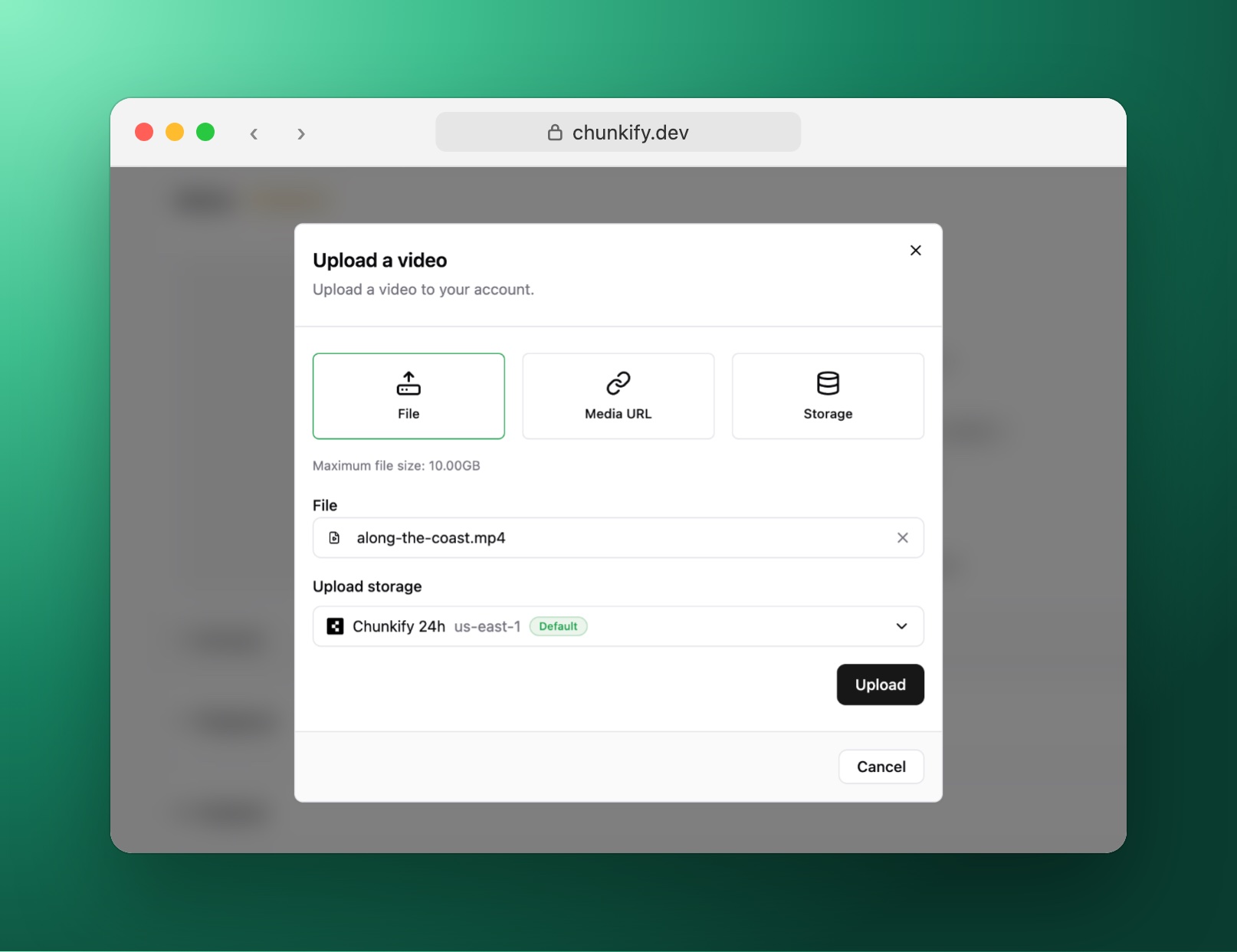
The dialog offers three ways to add the original video, called a Source:
- File uploads a video from your computer.
- Media URL imports a video that is already online, from a direct HTTP or HTTPS link.
- Storage uses a video that is already in a bucket you've connected.
Choose File, select a video, and select Upload. Upload storage shows where the original is kept. On a new Project, that's Chunkify temporary storage.
Create the video asset
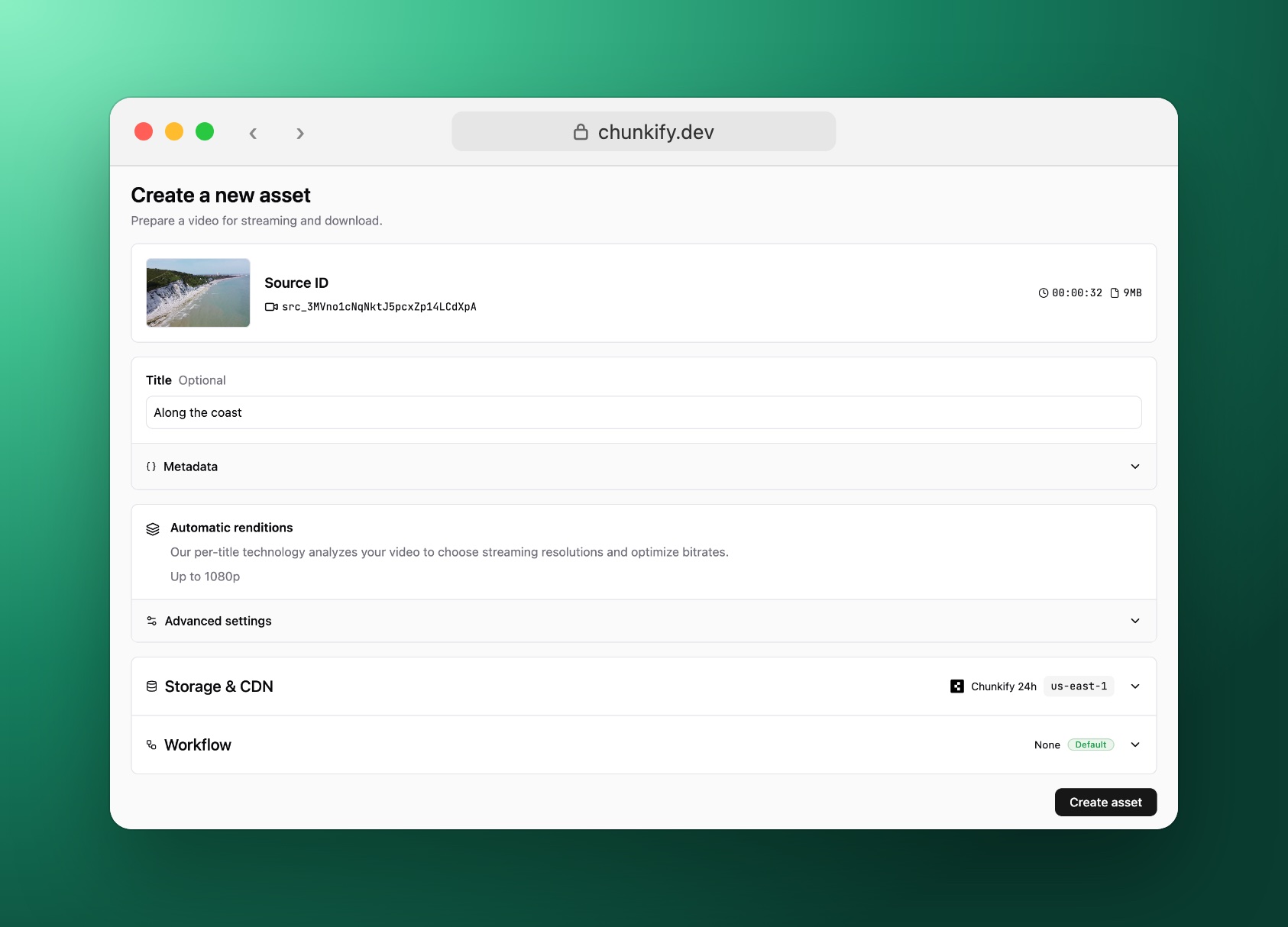
When the upload finishes, Chunkify checks the file and opens Create a new asset, with the Source's duration and size at the top. A video asset is the streamable version of your video: its adaptive stream, poster, and timeline previews.
You can leave every setting as it is for a first test:
- Title and Metadata are optional. They help you find the video later and connect it to records in your application.
- Automatic renditions uses per-title analysis to choose the streaming resolutions and bitrates for this video, so you don't build an encoding ladder yourself.
- Storage & CDN shows where the prepared files go.
- Workflow can add outputs such as captions or MP4 files. New Projects have none.
Select Create asset. Preparing a video uses your credit, priced per minute of the original video. See Plans and pricing for rates.
Watch it play
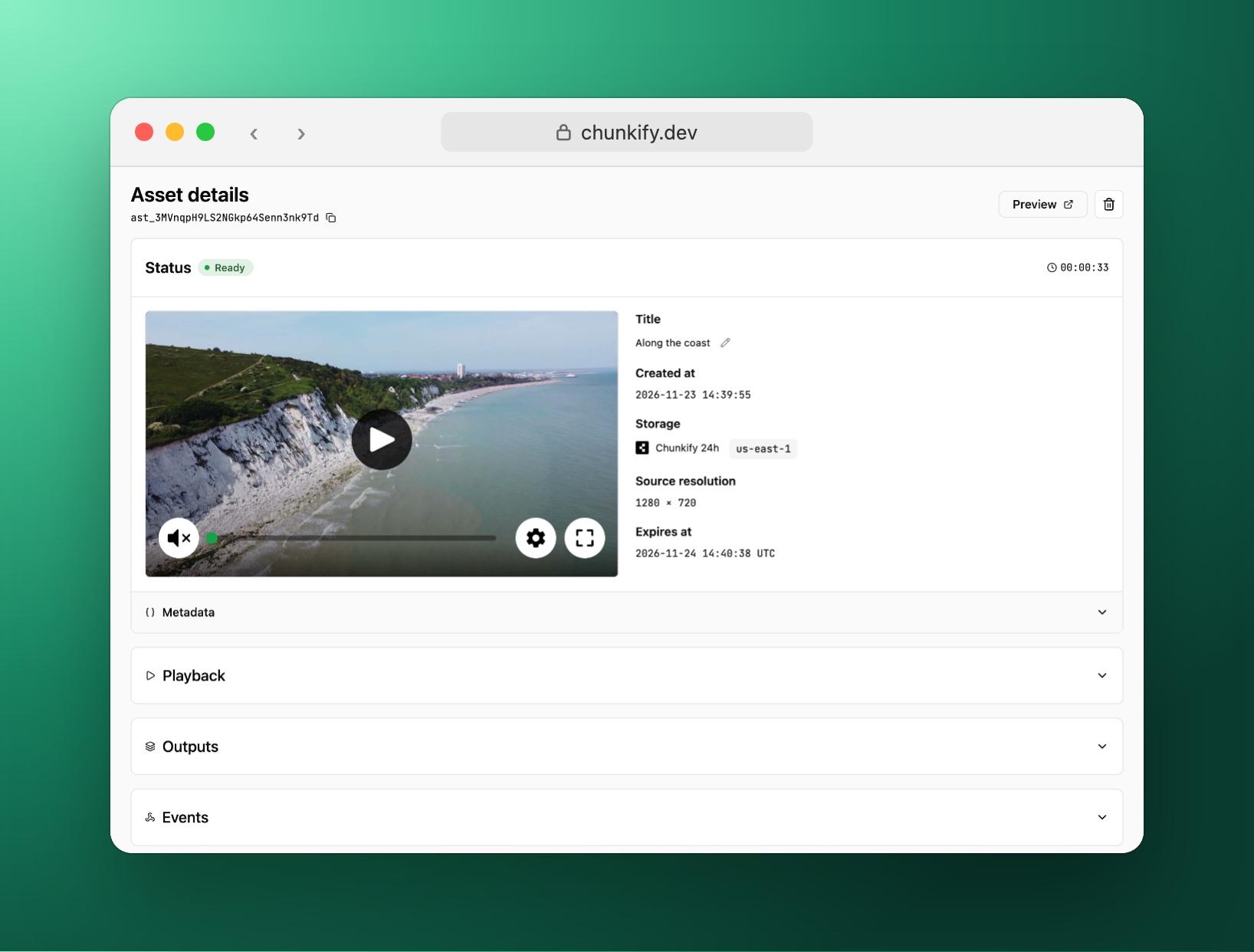
The video asset page shows a player as soon as the first stream can play, often while the status is still Preparing. When the status is Ready, the poster and timeline previews are available too, and the player shows the poster before playback starts.
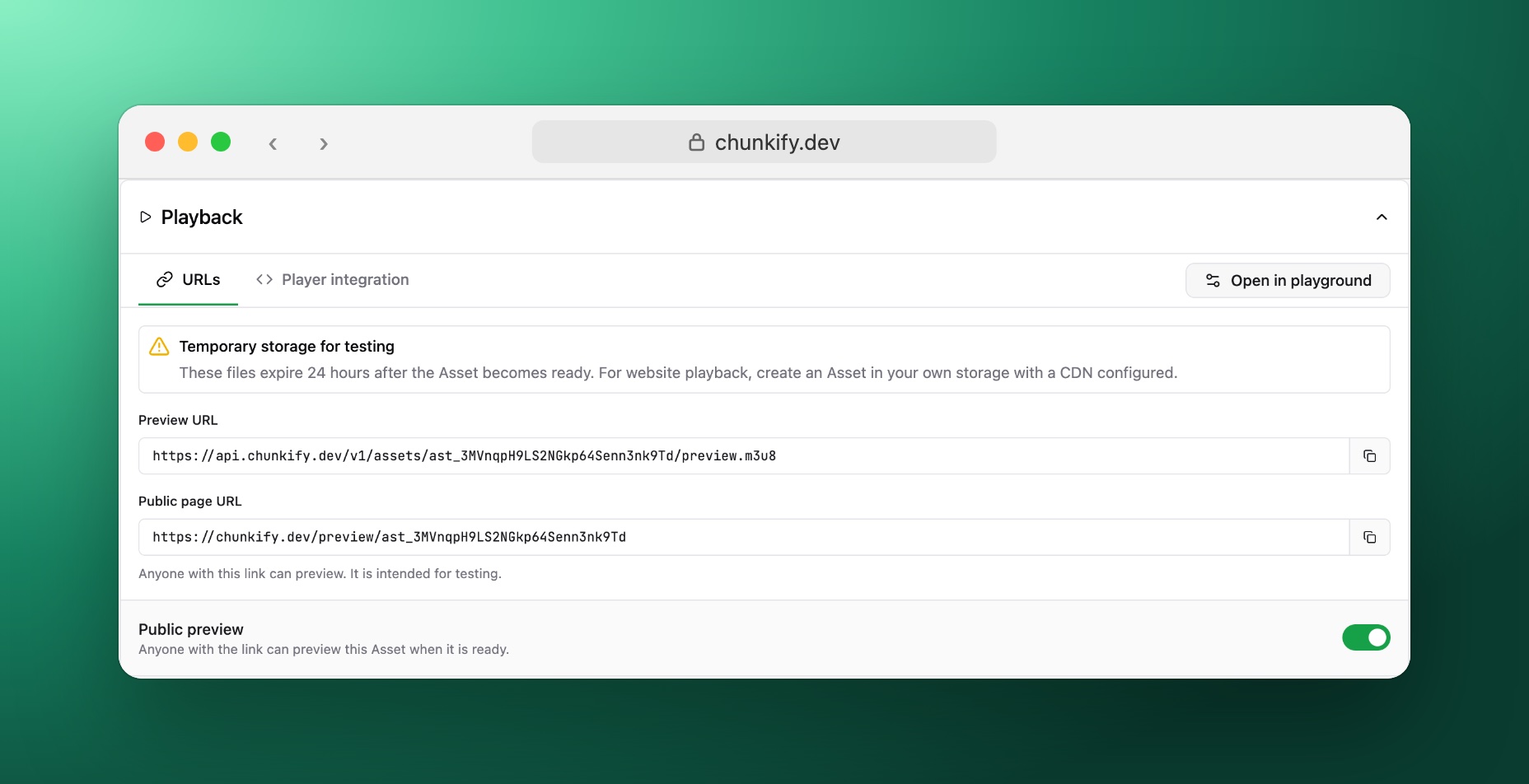
To play the video outside the dashboard, open Playback:
- Preview URL is the HLS stream. It works with any player that supports HLS, including Safari and the native iOS and Android players.
- Public page URL opens a simple playback page you can share. The Preview button at the top of the page opens it too.
- Public preview controls whether these links work. Anyone with a link can watch the video while it's on.
Embed the player
In Playback, select Open in playground. The playground shows the video in Chunkify Player and lets you match its colors to your application, separately for light and dark themes.
Below the preview, choose Next.js or HTML / JavaScript and copy the code into your page. The code includes your colors and the video's stream, poster, and timeline previews.
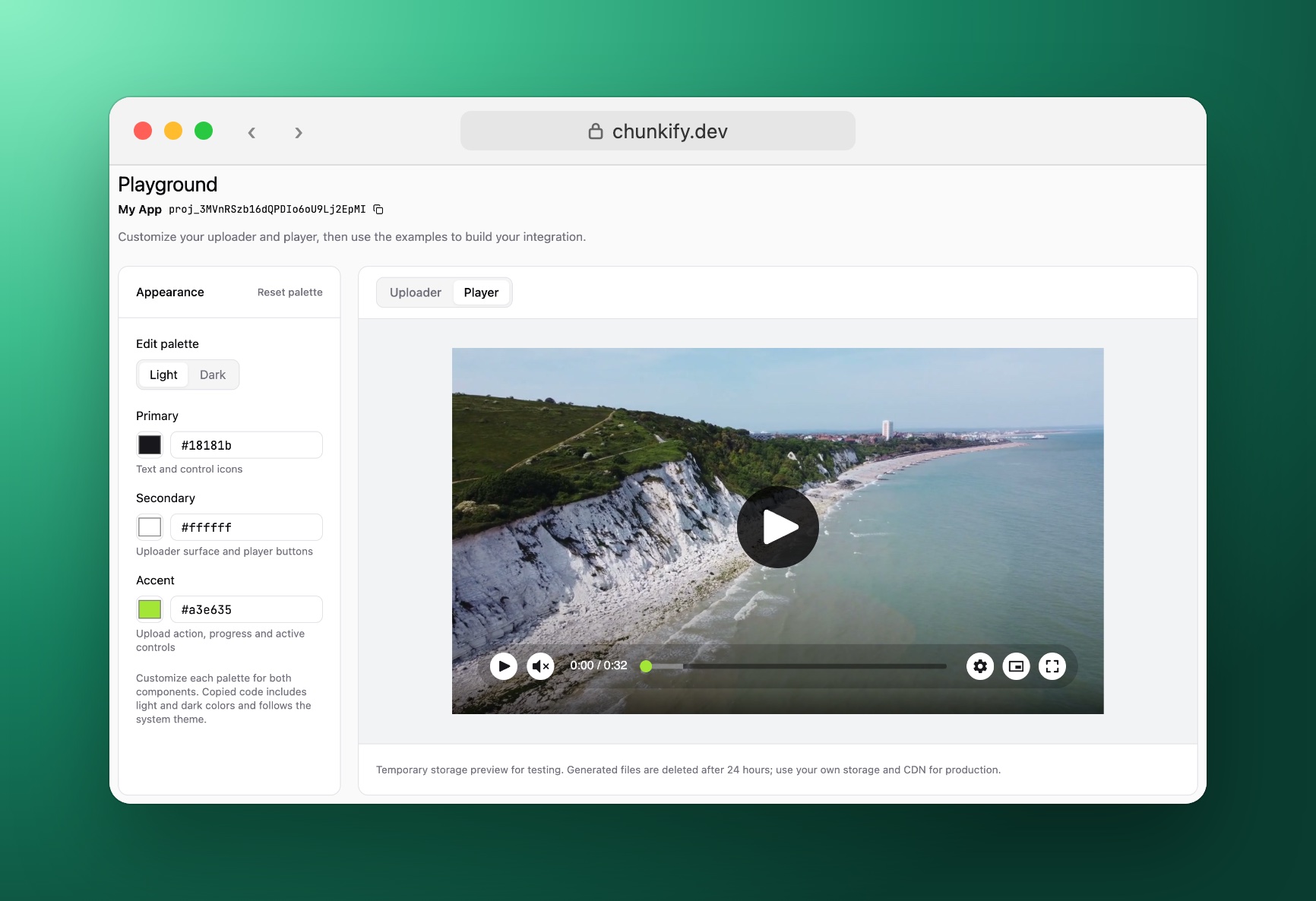
The copied code uses the preview URL. For video assets in your own storage with a CDN, the playground uses the CDN URLs instead.
See who watched
Chunkify Analytics is turned on for new accounts, and the code you copied from the playground already reports playback to it. Plays in the Chunkify dashboard are always recorded.
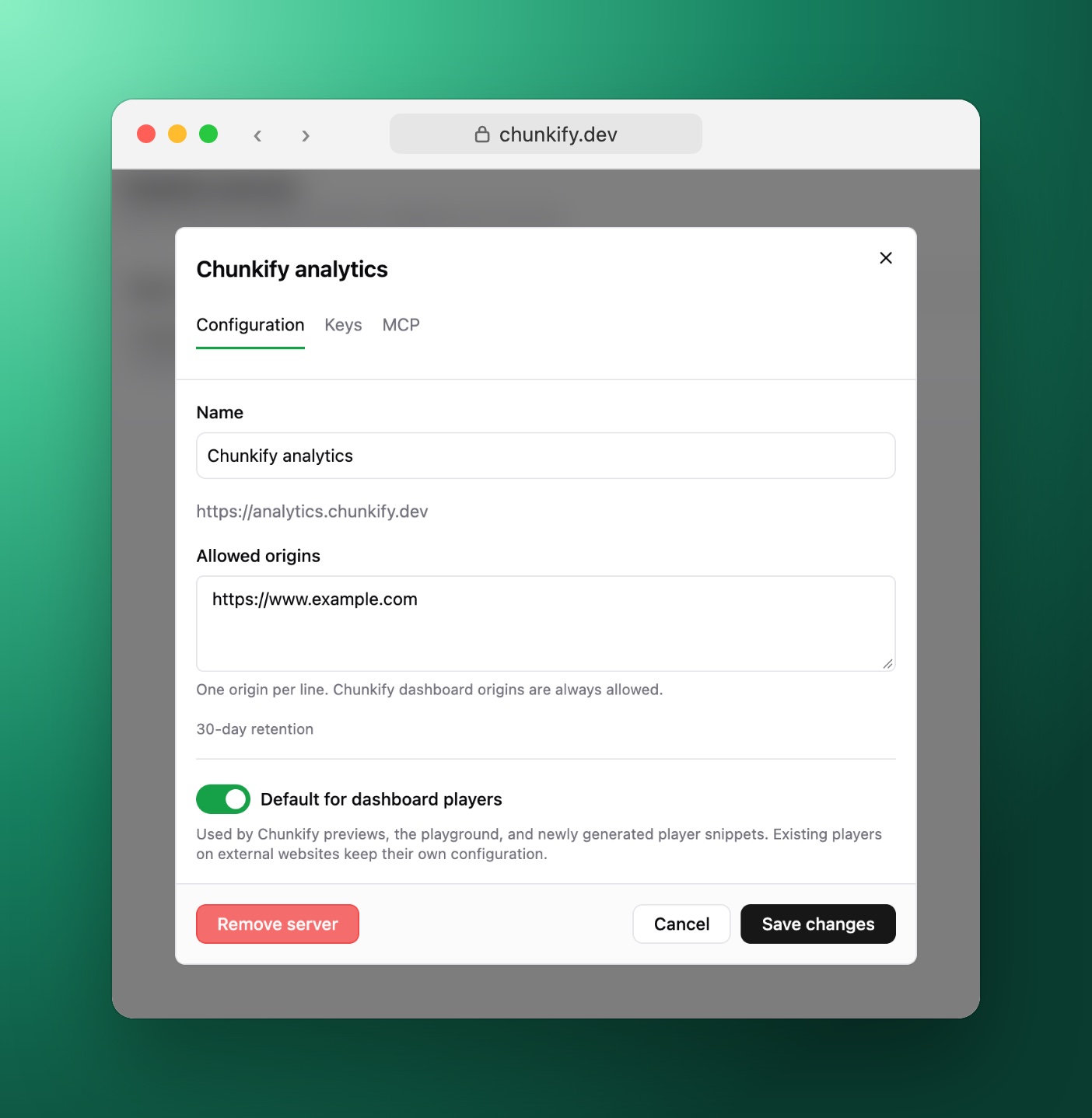
To record views from your website, allow its address first. Open Analytics → Settings, edit the Chunkify analytics server, and add your site's origin under Allowed origins, one per line. An origin is the scheme, domain, and port of your site, such as https://www.example.com or http://localhost:3000. Then select Save changes.
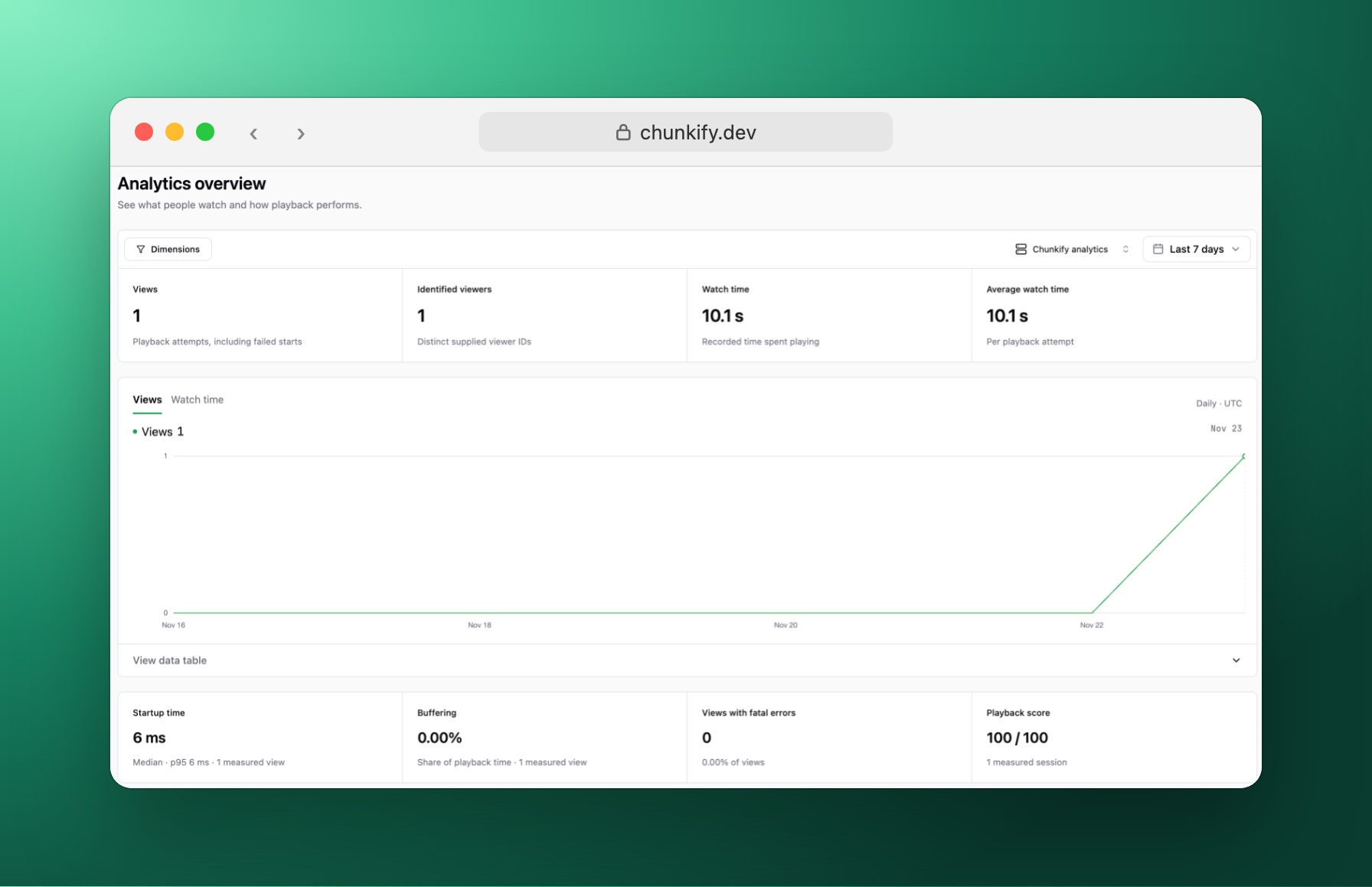
Play the video on your page, then open Analytics. Live shows views within a few seconds. Overview adds them after a few minutes, with watch time, startup time, buffering, and errors.
Files in Chunkify temporary storage are deleted 24 hours after the video asset is ready, and its preview links stop working. Use them for testing, then connect your storage for videos you want to keep.
Next steps
- Build with your coding agent to add uploads and playback to your application.
- Create your first video stream with the API to do the same steps from your code.
- Connect your storage and CDN so videos stay in your bucket and play from your domain.
- Analytics explains the viewer and playback metrics Chunkify records.